
1Download the file
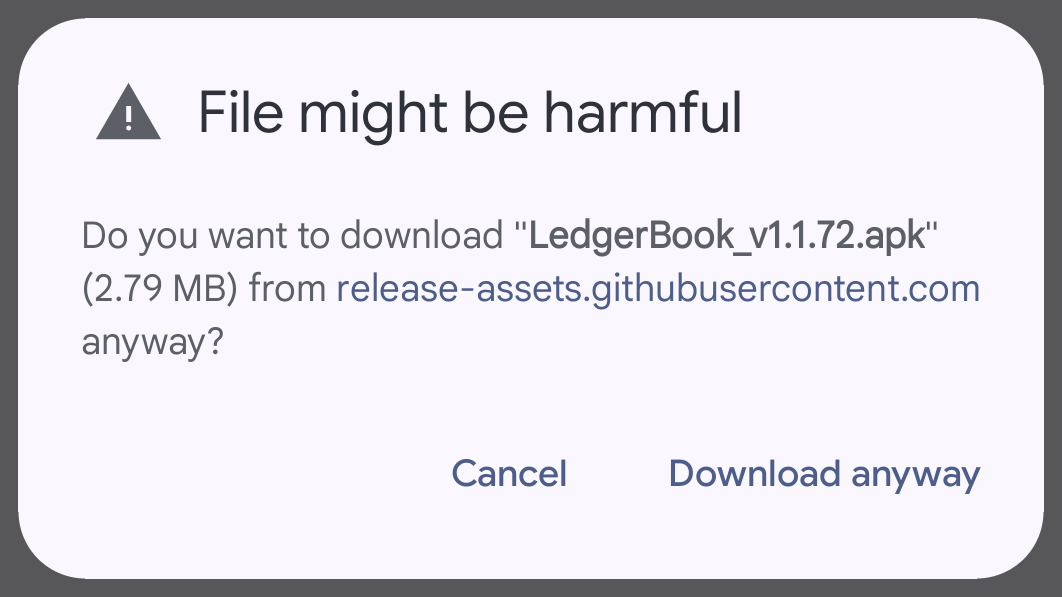
Tap the download button. Chrome may say the file "may be harmful" — it says that about every APK. Choose Download anyway.
Expected warning 1 of 2
How to install
Four steps, about two minutes. Your phone will show two warnings along the way and both are expected — they appear for every app that does not come from the Play Store, not because of anything about this one.
Tap the download button. Chrome may say the file "may be harmful" — it says that about every APK. Choose Download anyway.
Expected warning 1 of 2
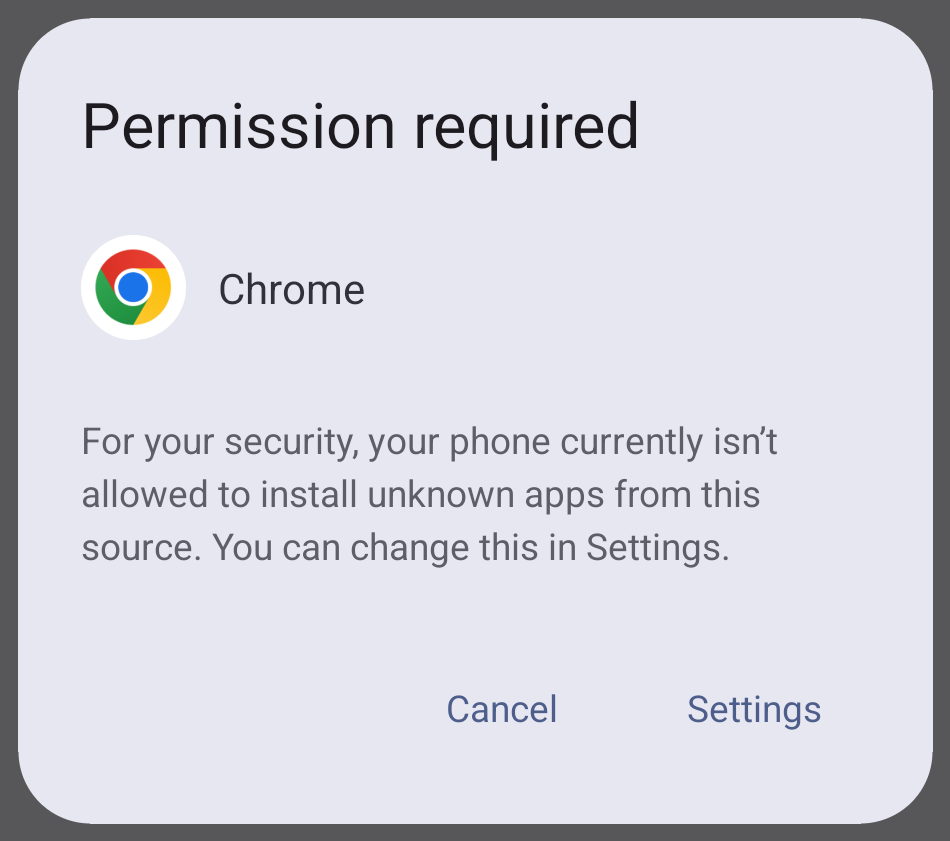
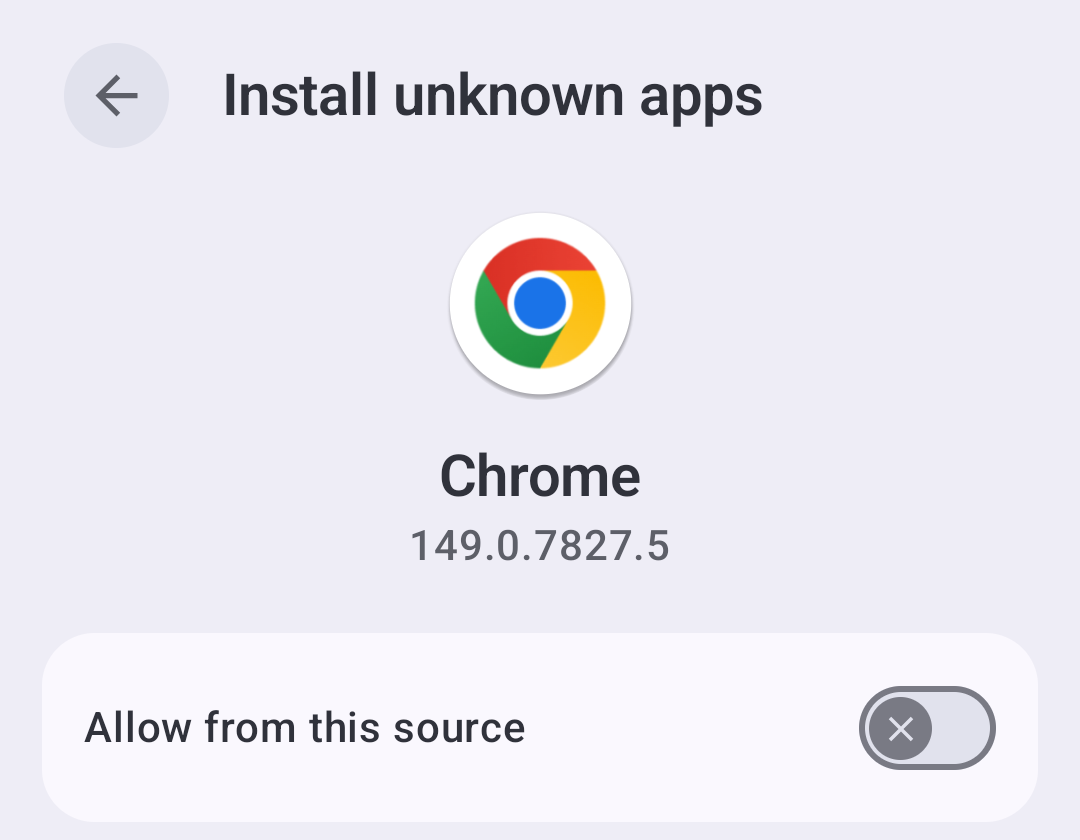
Open the downloaded file. Android says this source is not allowed to install apps yet. Tap Settings — not Cancel — and turn on Allow from this source. The install carries on by itself from there.
Expected warning 2 of 2
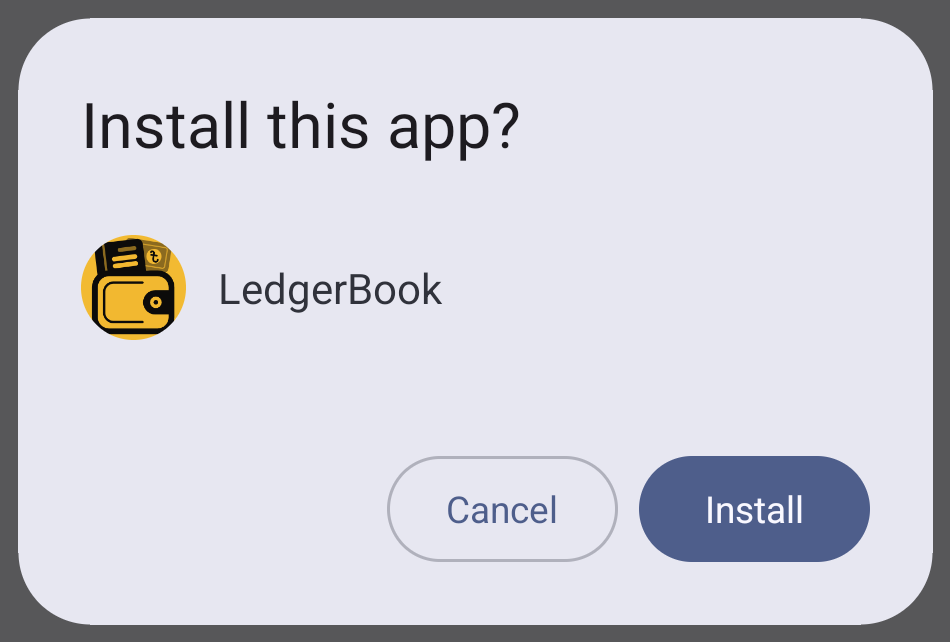
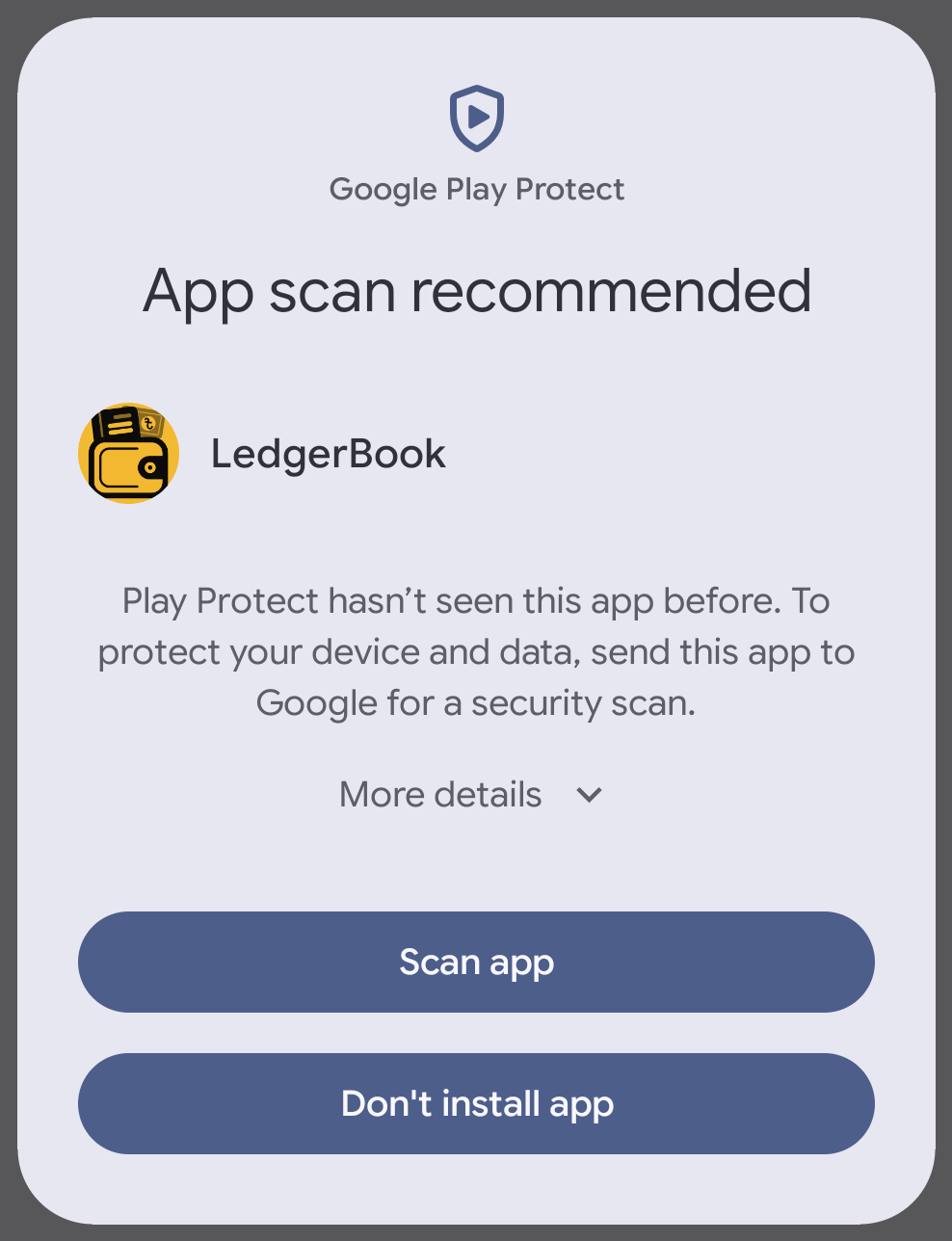
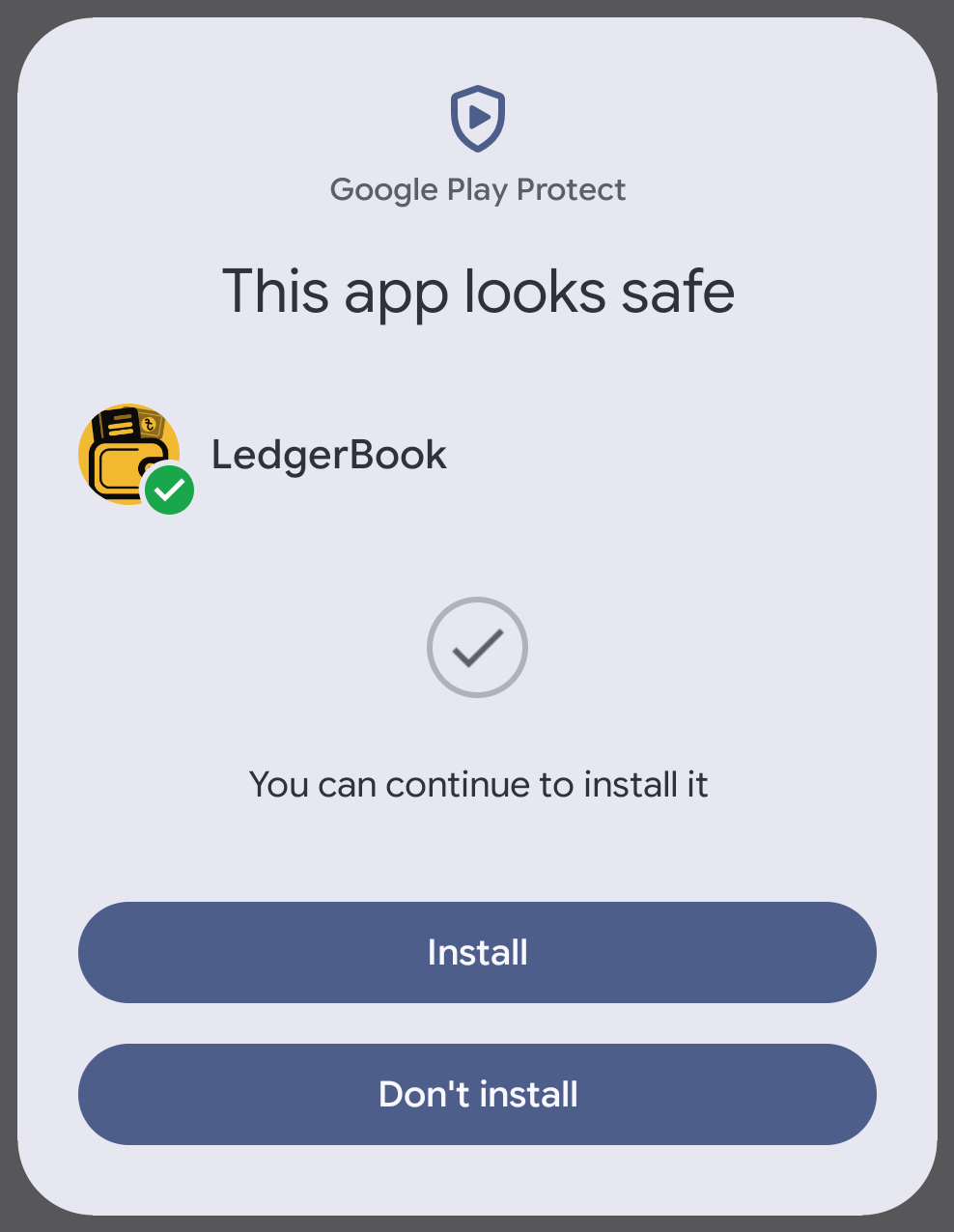
Tap Install. Play Protect then says it has not seen this app before and offers to scan it — choose Scan app. It takes about a minute and comes back with This app looks safe, and then you tap Install again.
aTap Install
bChoose Scan app
cTap Install again
No sign-inNo accountPIN never leaves the phone
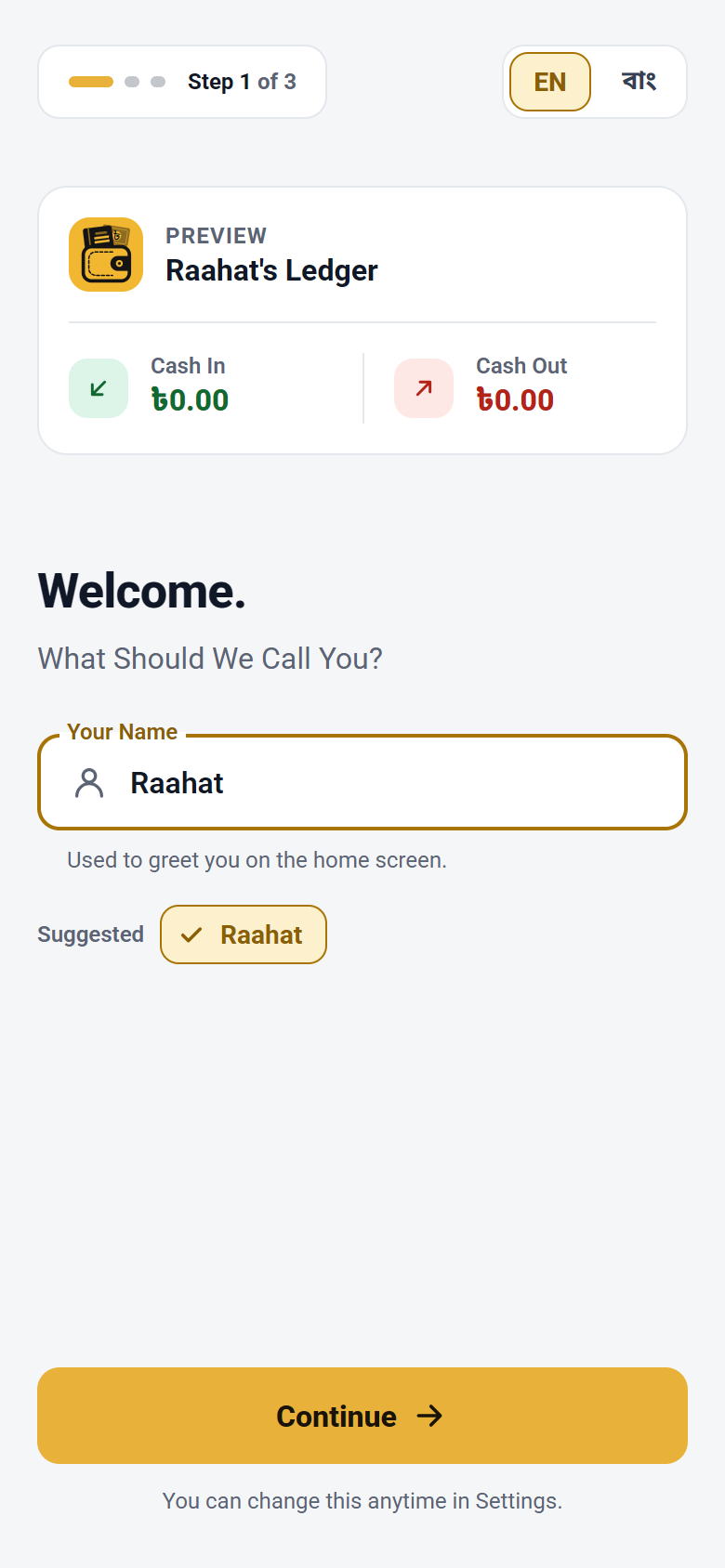
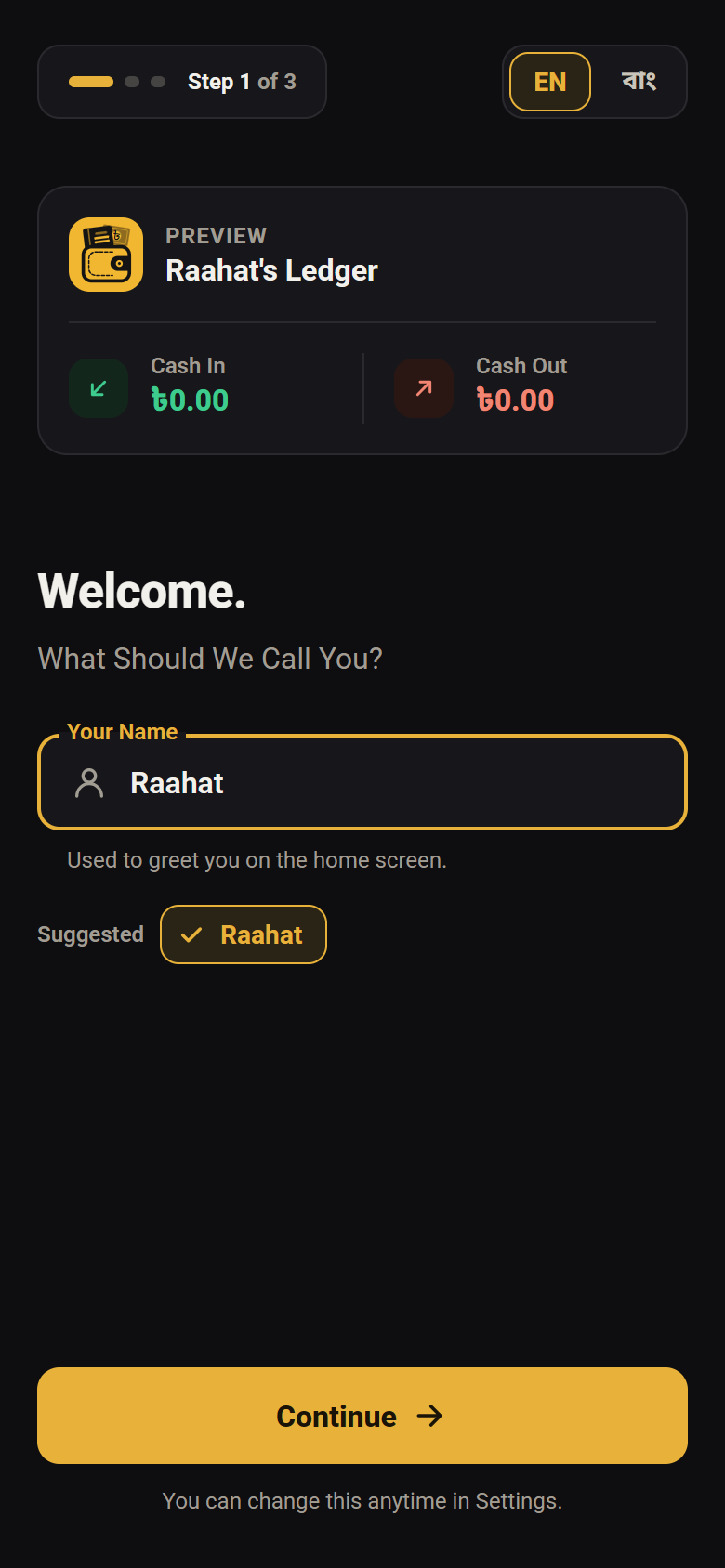
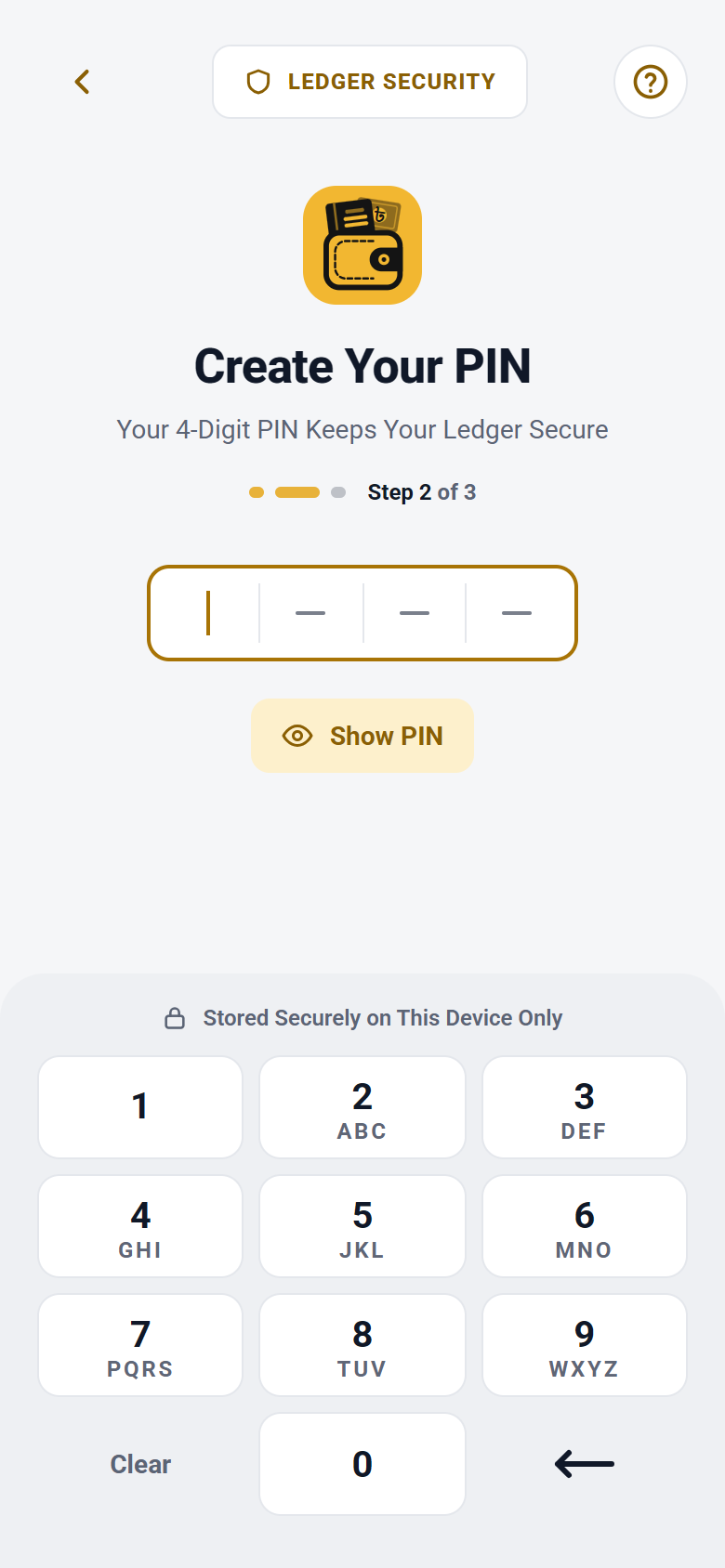
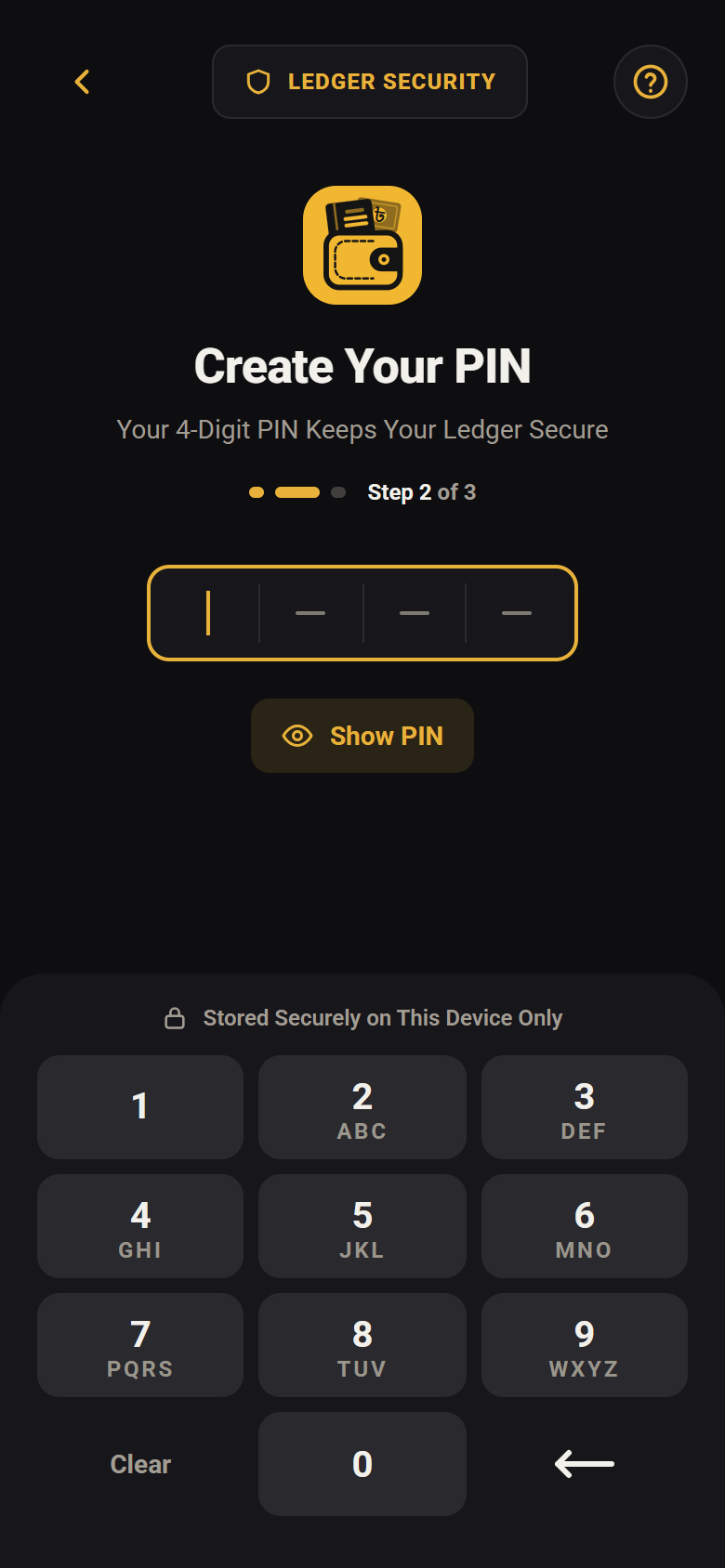
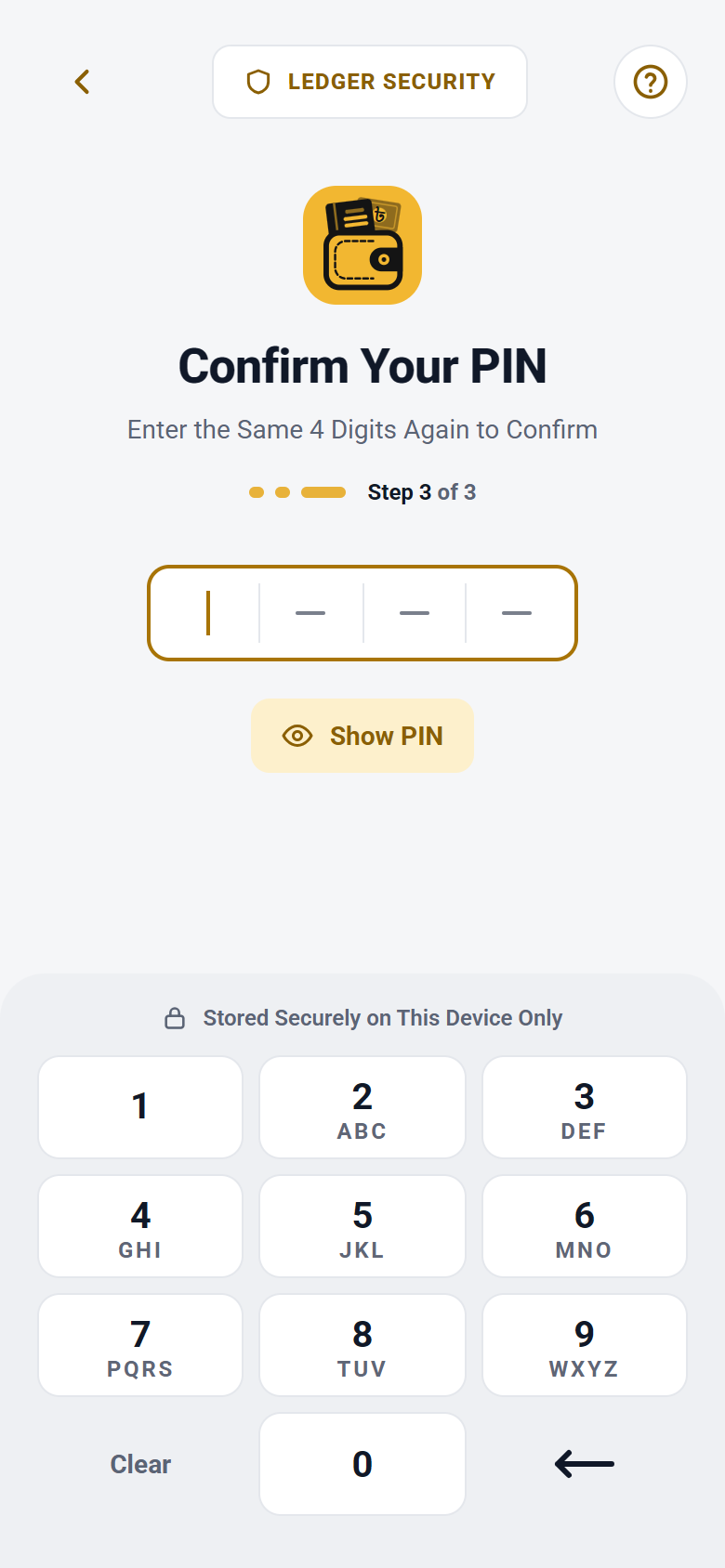
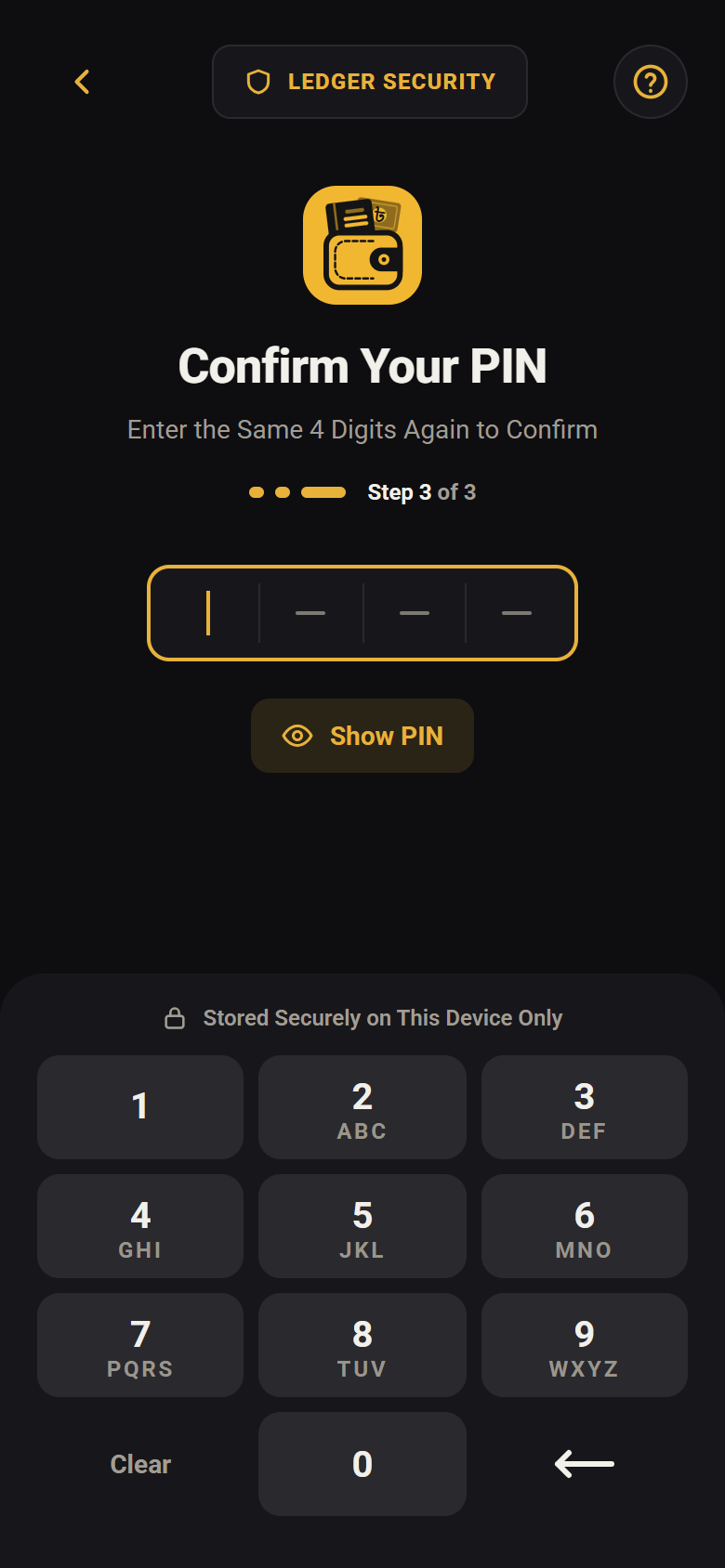
Open LedgerBook. It asks what to call you, then how you would like to type your PIN — Number Pad or Keyboard — then for a four-digit PIN, typed twice. The PIN stays on this phone and is never copied — not even into a backup. There is nowhere to sign in to and no account to make.
aTell it your name
bCreate your PIN
cConfirm your PIN
That’s it — the app is ready to use.
Optional
Every release publishes the fingerprint of its own file. If the number your phone computes matches the one below, the file is byte for byte the one that was published. This is optional — most people skip it.